Setting Up Xecurify SMS Gateway Configuration with CellCast
This guide outlines the steps required to integrate the Xecurify platform with the CellCast SMS Gateway using a custom POST method. By completing this setup, Xecurify will be able to send messages via CellCast's SMS infrastructure.
Step-by-Step Configuration
1. Navigate to SMS Gateway Settings
Go to the Xecurify SMS Gateway Configuration and select: SET ORGANIZATION SMS GATEWAY
2. Select Gateway Type
Choose the following option:
- SMS Gateway:
Custom Gateway (POST Method)
3. Enter Gateway URL
Set the Gateway URL to: https://api.cellcast.com/api/v1/gateway/single
This endpoint will be used for sending single SMS messages via POST requests in JSON format.
4. Set Content-Type Header
Specify the request content type: application/json
5. Configure Authentication Header
- Authentication Type:
Custom Header - Header Key:
Authorization - Header Value:
Bearer{{API_KEY}}
Replace {{API_KEY}} with your actual Cellcast API key
Define POST Fields
Add the following key-value pairs as POST parameters:
| Field | Value | Description |
|---|---|---|
message | ##message## | The dynamic SMS content sent from Xecurify |
phone | ##phone## | The recipient's mobile number |
sender | {{SenderID}} | Your registered Sender ID in CellCast |
Note: Ensure {{SenderID}} is approved in your CellCast account to ensure message delivery.
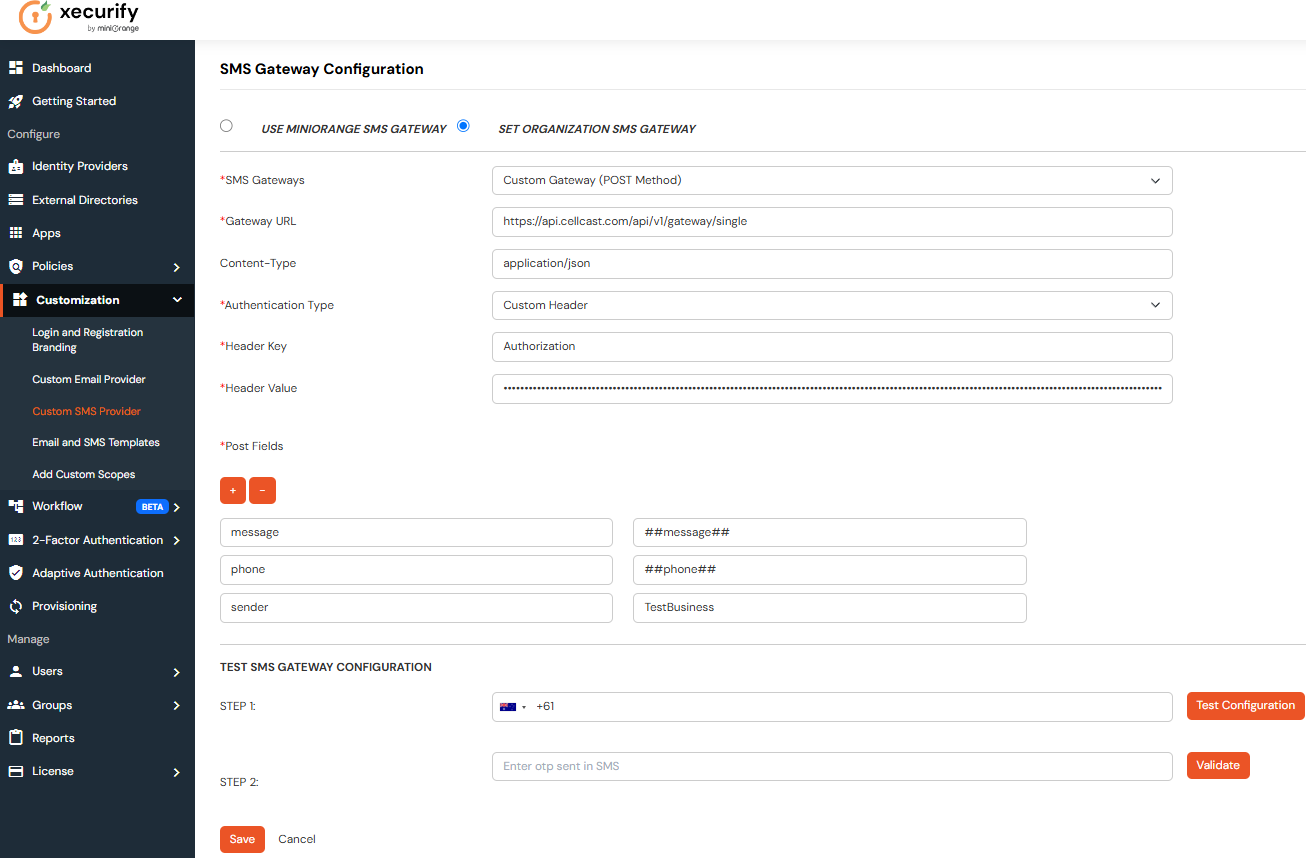
Once this configuration is saved, your Xecurify environment will be able to deliver SMS messages using CellCast.
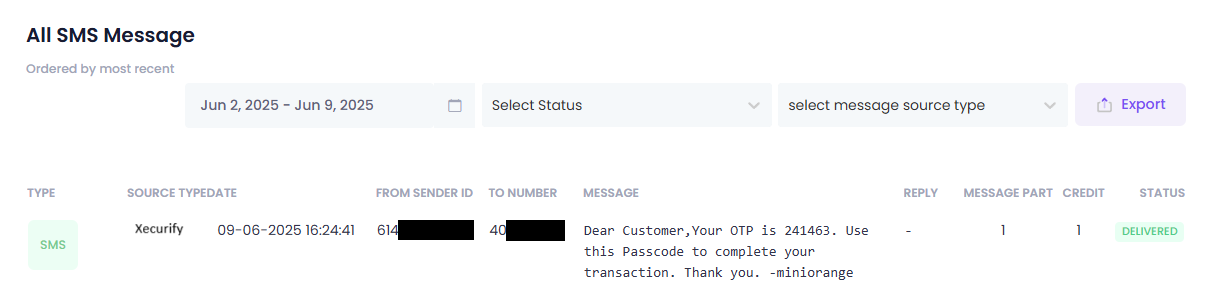
You can view a complete history of all messages sent through your account by navigating to the CellCast Activity Log.