Email to SMS
Whitelisting Domains and Email Addresses
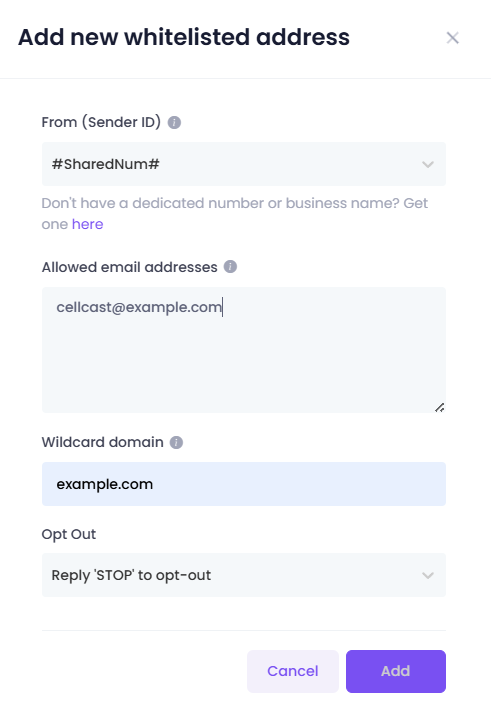
Create Whitelisted Entry
The whitelisted entry registers domains that can send SMS via email.
- Select the Email to SMS menu.
- Click the Create New button.
- Input the following details:
- Sender ID: Choose from the available options:
- Shared Number
- SMS Dedicated Number
- MMS Dedicated Number
- Custom Number
- Business Name
- Allowed Email Addresses: Add email addresses permitted to send SMS.
- Wildcard Domain: Enter domains to whitelist all emails from specific domains.
- Opt Out : Select the Opt Out option
- Sender ID: Choose from the available options:
Example: Adding a Whitelist Entry
Global Settings Configuration
Add Global Setting
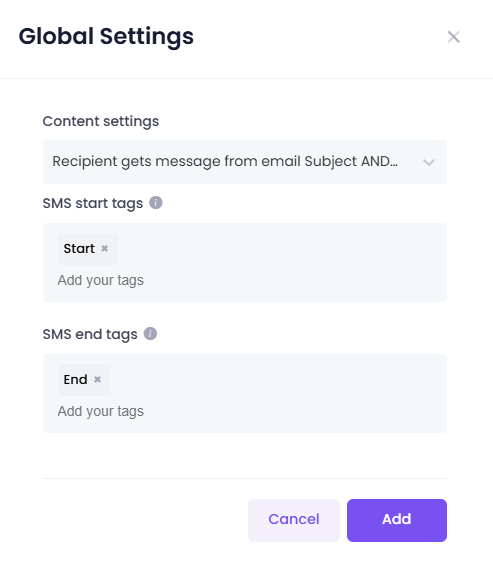
Global settings determine how the email content is converted into SMS.
- Click the Add Global Setting icon.
- Input the following details:
- Content Settings: Choose one of these options to define what the recipient receives:
- Email Subject and Body: The recipient gets both the email subject and body as an SMS.
- Email Body Only: The recipient only gets the email body.
- Email Subject Only: The recipient only gets the email subject.
- Full Email Body Content: The recipient gets the complete email body.
- Set SMS Start Tags: Use tags or characters to define the start of the SMS content (e.g.,
Start). - Set SMS End Tags: Use tags or characters to define the end of the SMS content (e.g.,
End).
- Content Settings: Choose one of these options to define what the recipient receives:
Example: Adding a Global Setting
Sending Mail to SMS
How to Send Email to SMS
- Open the email account that is whitelisted.
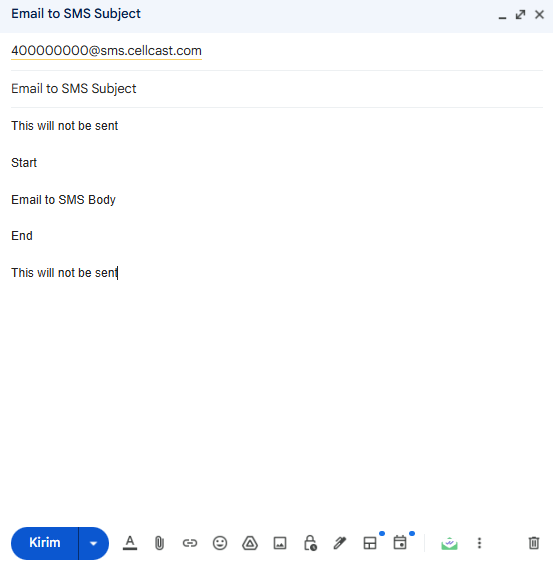
- Compose a new email with the following details:
- To: Specify the recipient using one of the following:
- Phone Number: Sends the SMS directly to a single phone number.
- ID Tags: Sends the SMS to numbers associated with predefined tags.
- ID List: Sends the SMS to multiple numbers based on a predefined list.
- Subject: Enter the subject, which may be part of the SMS based on the global settings.
- Body: Format the content with start and end tags (e.g.,
Start This is an email to SMS End).
- To: Specify the recipient using one of the following:
Example: Using Tags in the Body:
Only the content between the "Start" and "End" tags will be sent as an SMS.
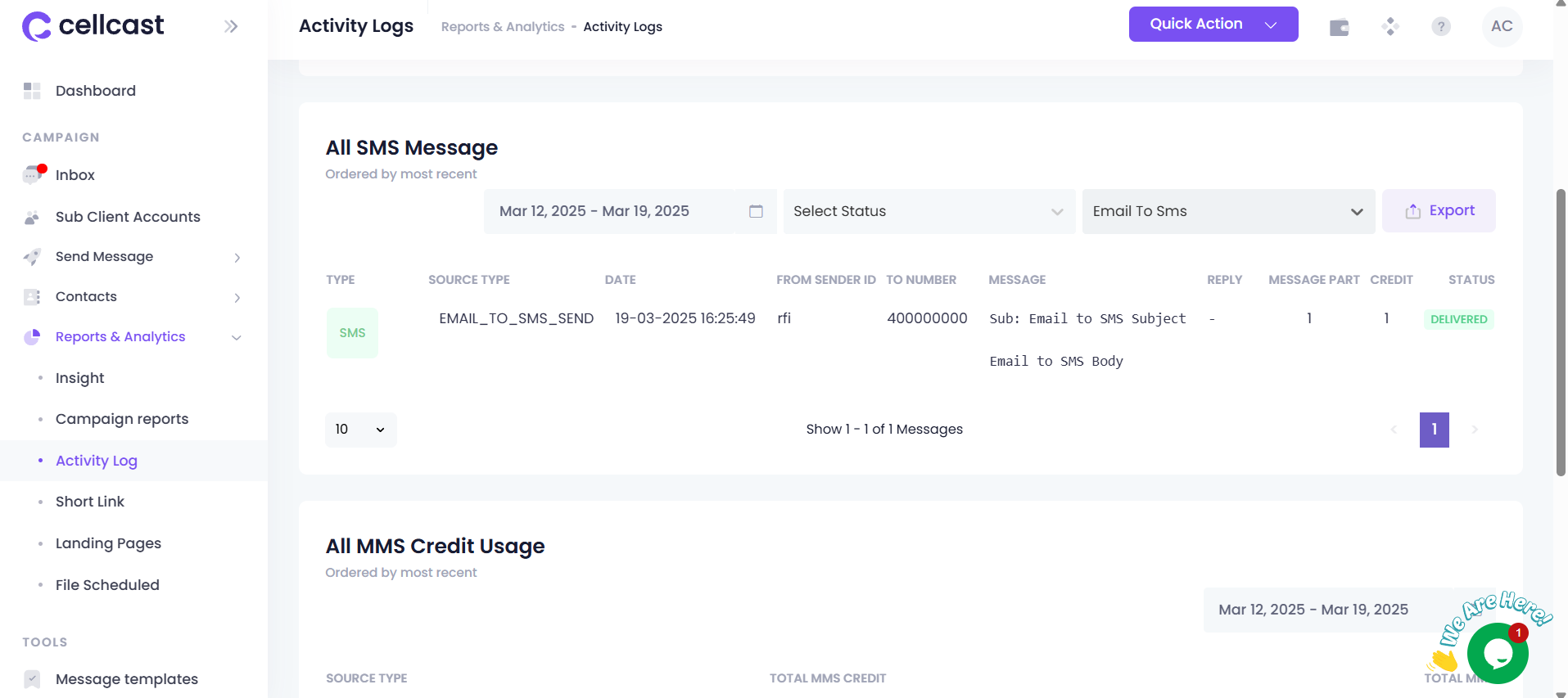
Viewing Email to SMS Reports
You can view reports of your Email to SMS activity.
- Navigate to Reports & Analytics.
- Open the Activity Log menu to view the sent messages report.
Example: Viewing Mail to SMS Reports