Integrating with ActiveCampaign
Setting Up ActiveCampaign Integration
Access the Integrations Menu
From your Cellcast Dashboard, navigate to the Integrations menu and click the Activate button next to ActiveCampaign.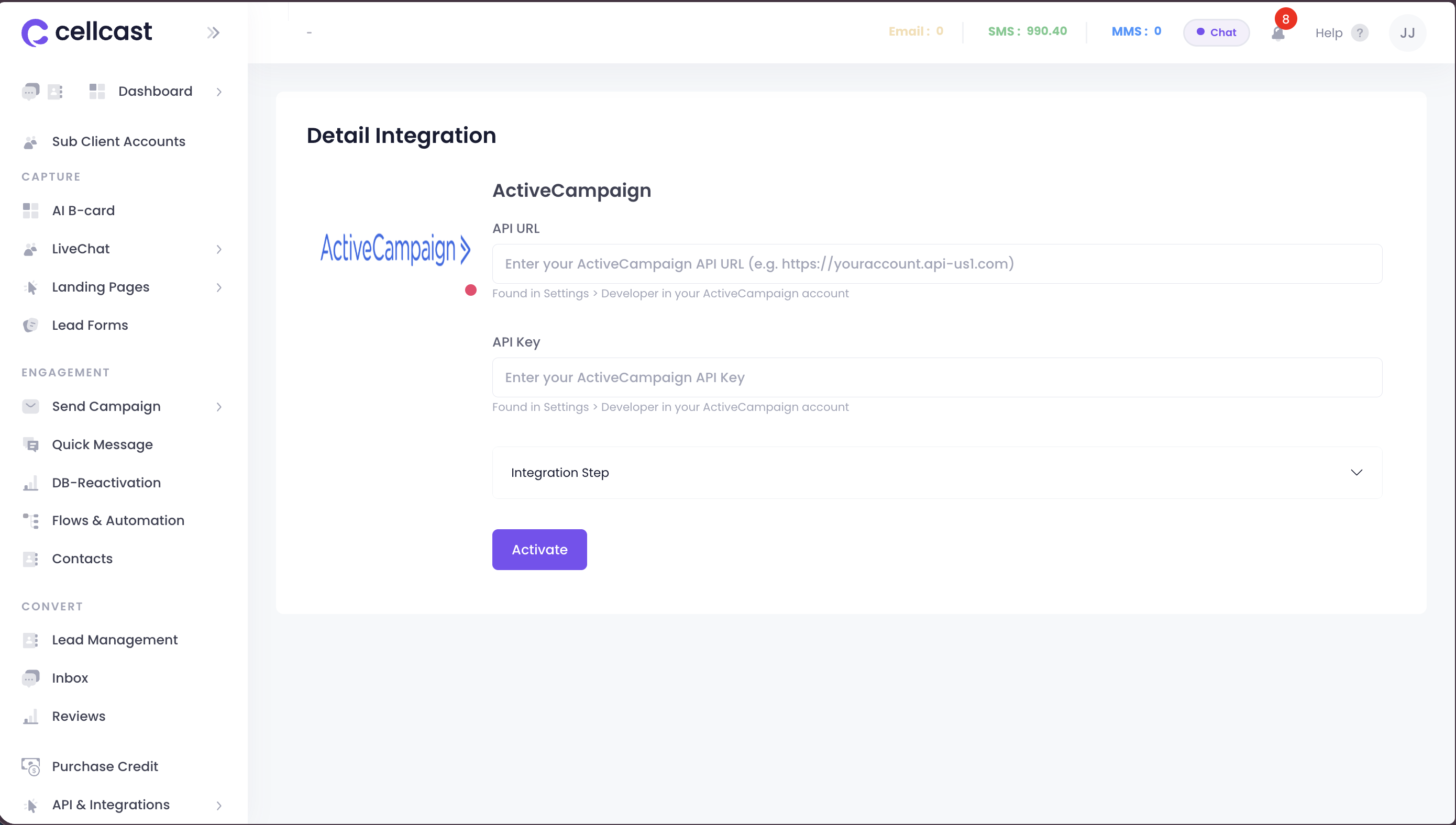
Get API URL and API Key
Log in to your ActiveCampaign account and navigate to Settings > Developer. Copy your API URL and API Key.
Activate the Integration
On the integration details page, paste your API URL and API Key, then click Activate.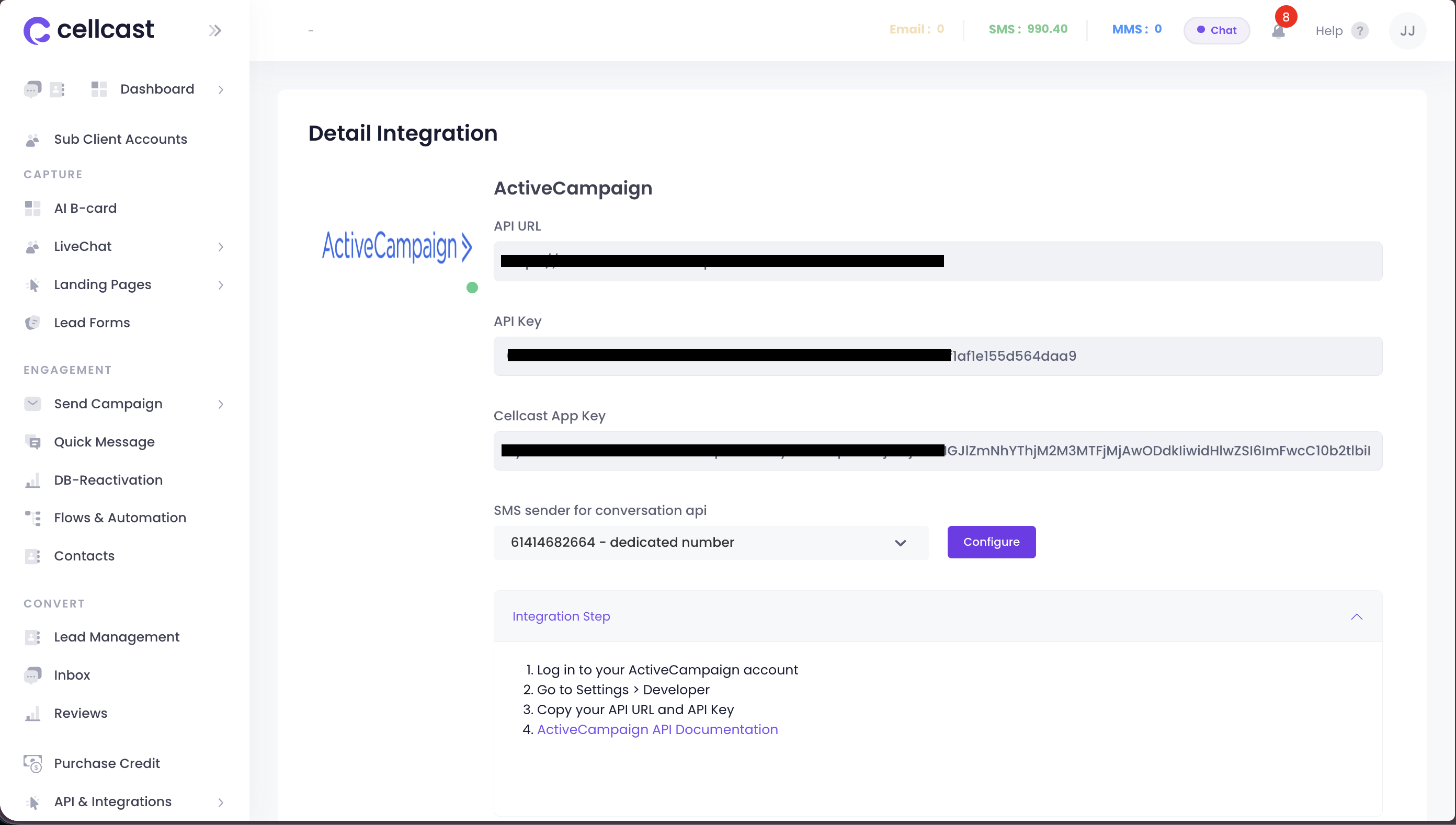
Integration Details
After activation, you will see your ActiveCampaign API URL, API Key, and the Cellcast App Key Label. You can also configure theSMS Sender ID for messaging.
Syncing Contacts
Import Contacts from ActiveCampaign
Import Contacts
Click the Import button to import your contacts from ActiveCampaign into Cellcast.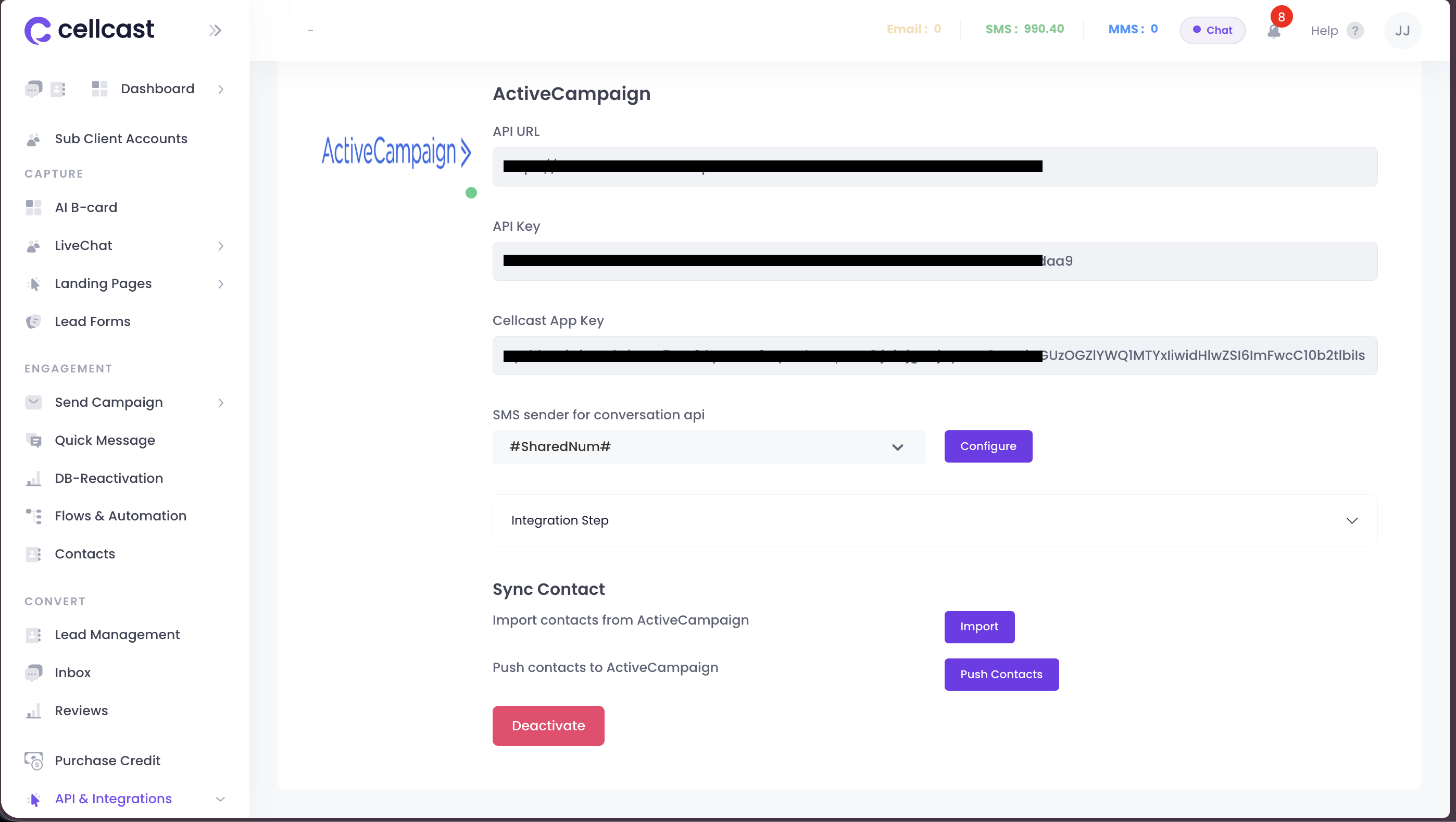
Push Contacts to ActiveCampaign
Push Contacts
Click the Push Contacts button to export your Cellcast contacts to ActiveCampaign.
Sending Messages from Automation
Choose Cellcast from App
In your ActiveCampaign automation, add an action and select Cellcast from the list of available apps.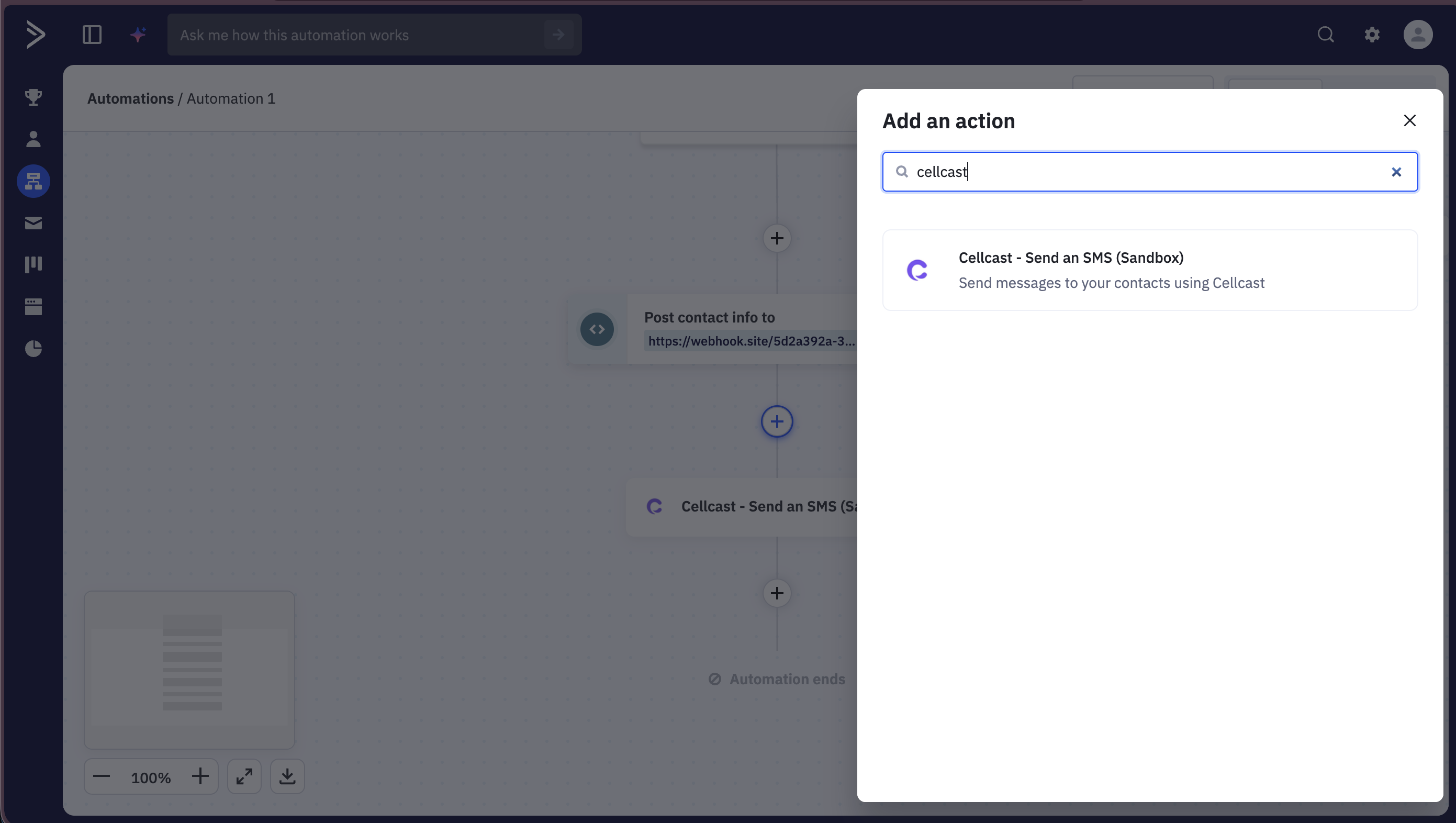
Copy/Paste the Cellcast App Key
Copy the Cellcast App Key from your integration details page and paste it into the required field.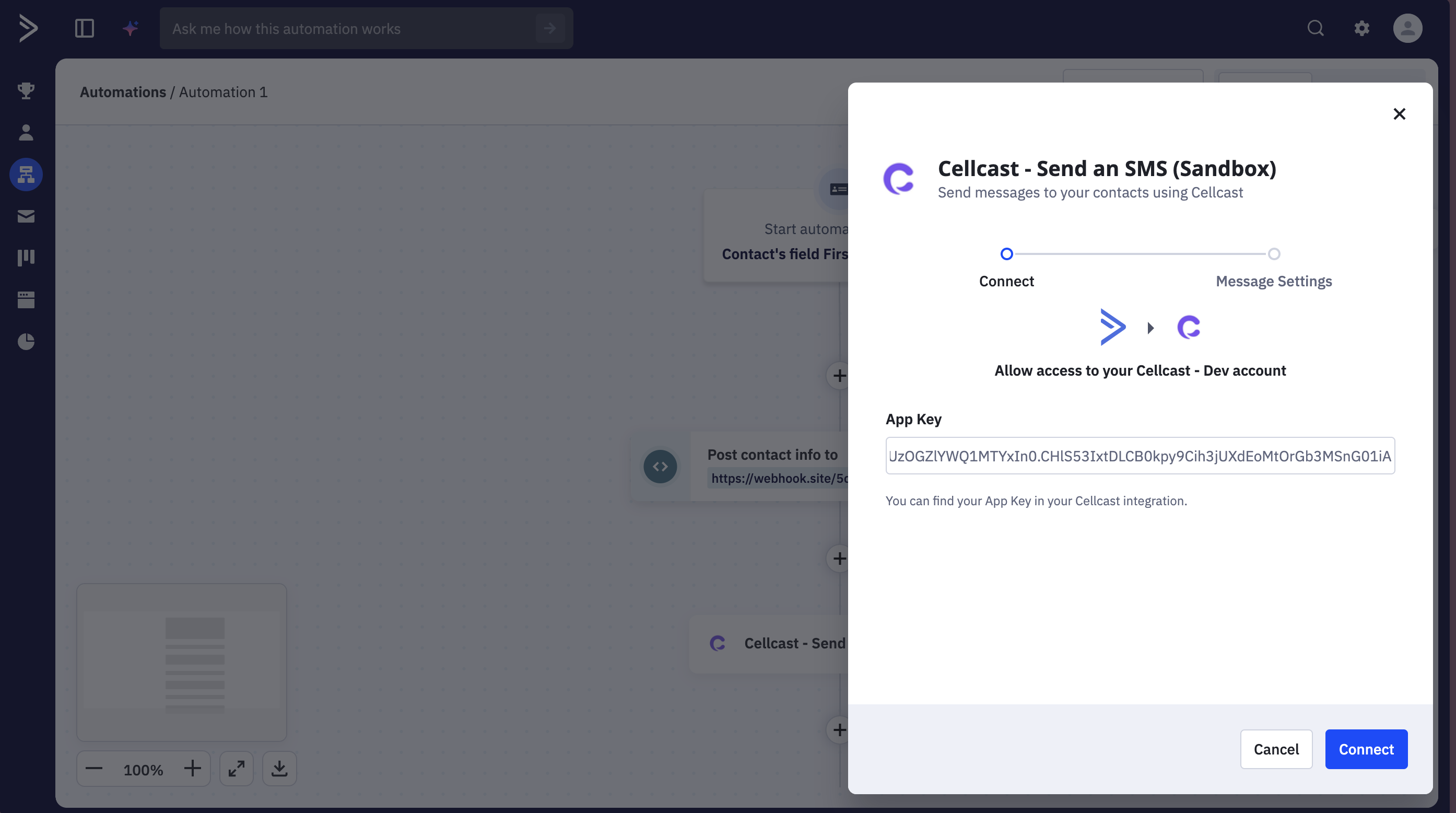
Set the Message and Save
Enter your message content, then click Save or Finish to complete the automation step.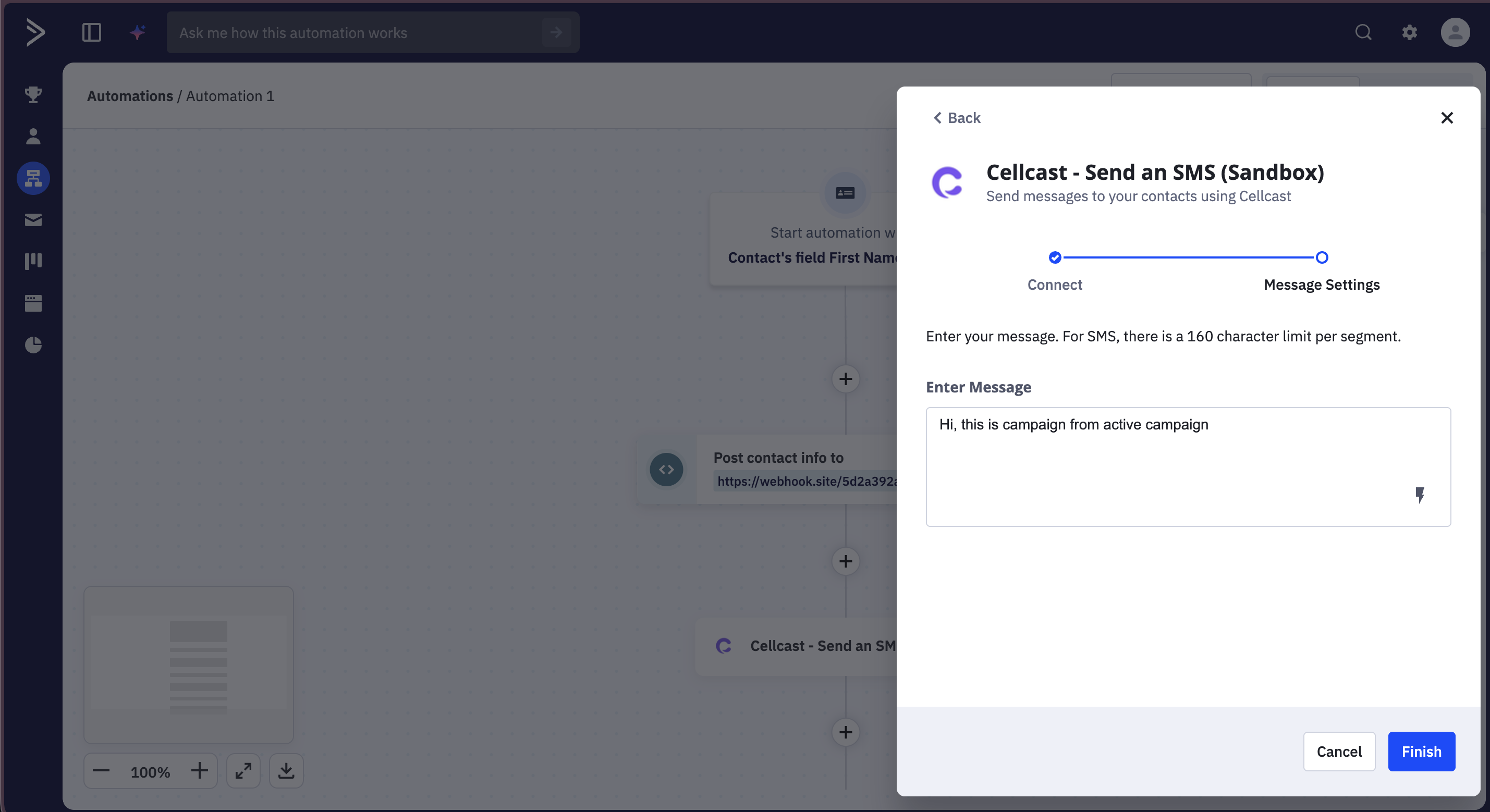
Viewing Message Reports
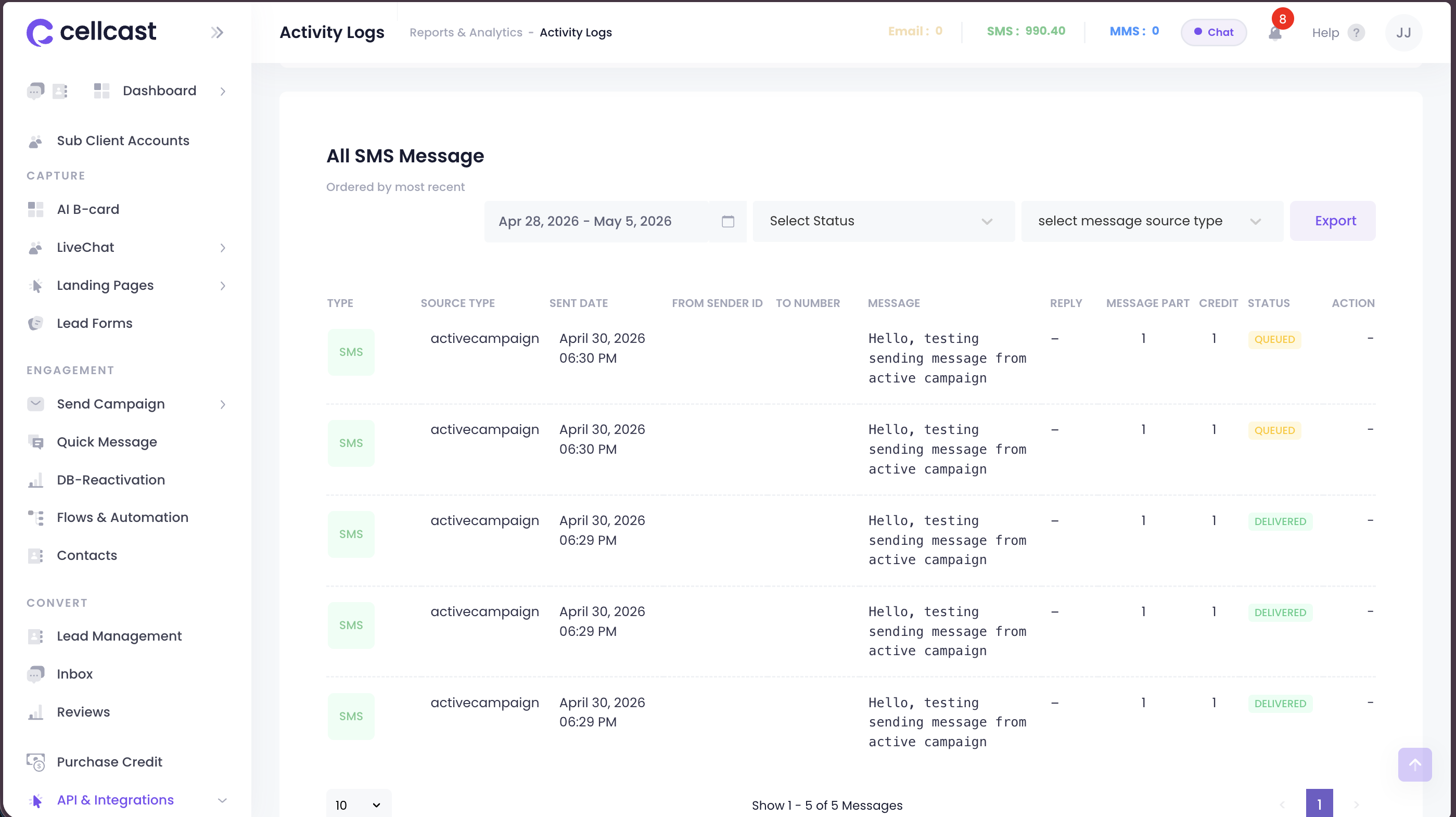
All messages sent via ActiveCampaign can be viewed in the API Messages section under Report & Analytics on the Cellcast app.