
Integrating with Slack
Setting Up Slack Integration
Access the Integrations Menu
From your Cellcast Dashboard, navigate to the Integrations menu and click the Activate button next to Slack.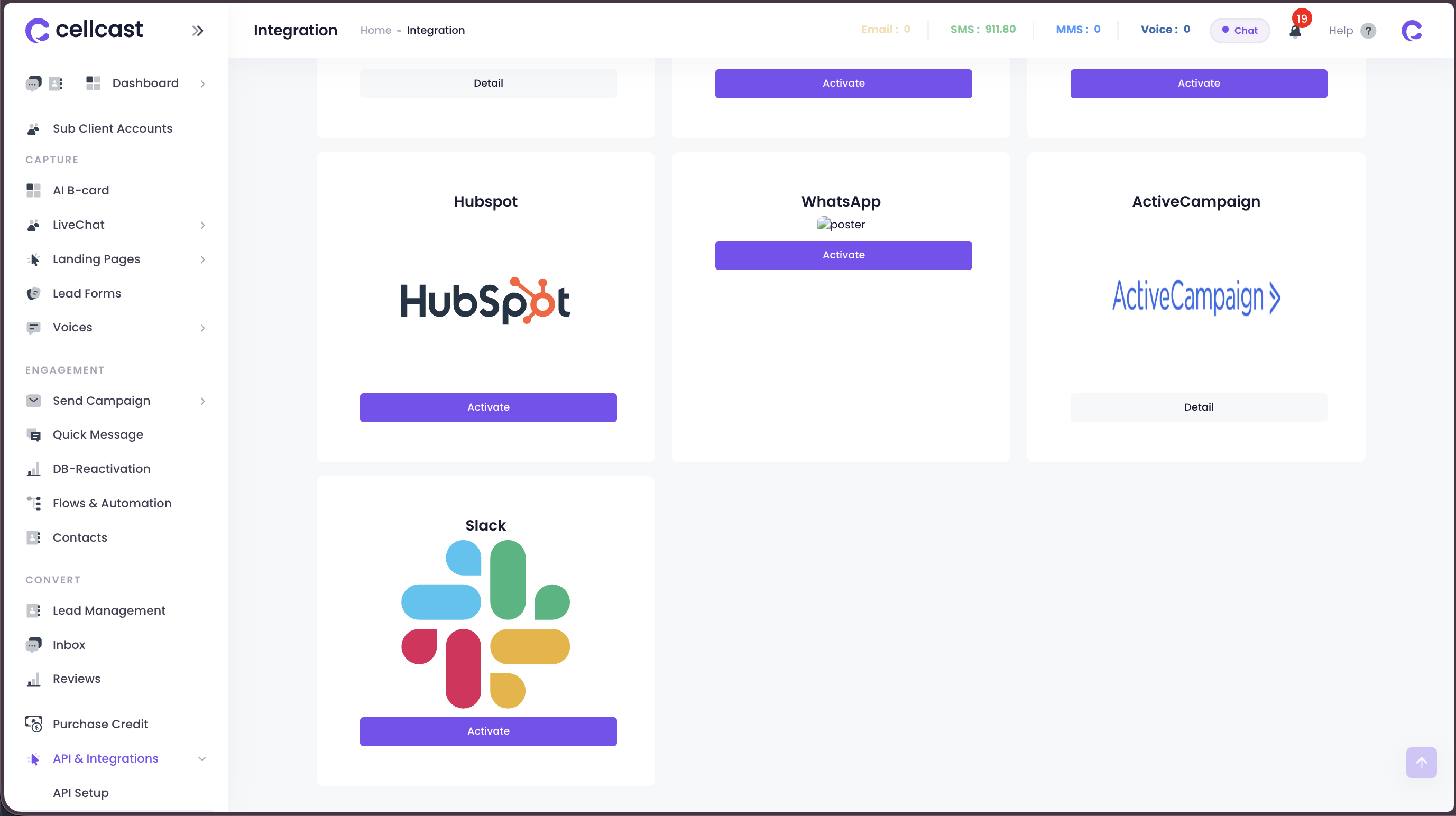
View Integration Details
On the integration details page, review the Slack integration information and click Activate to proceed.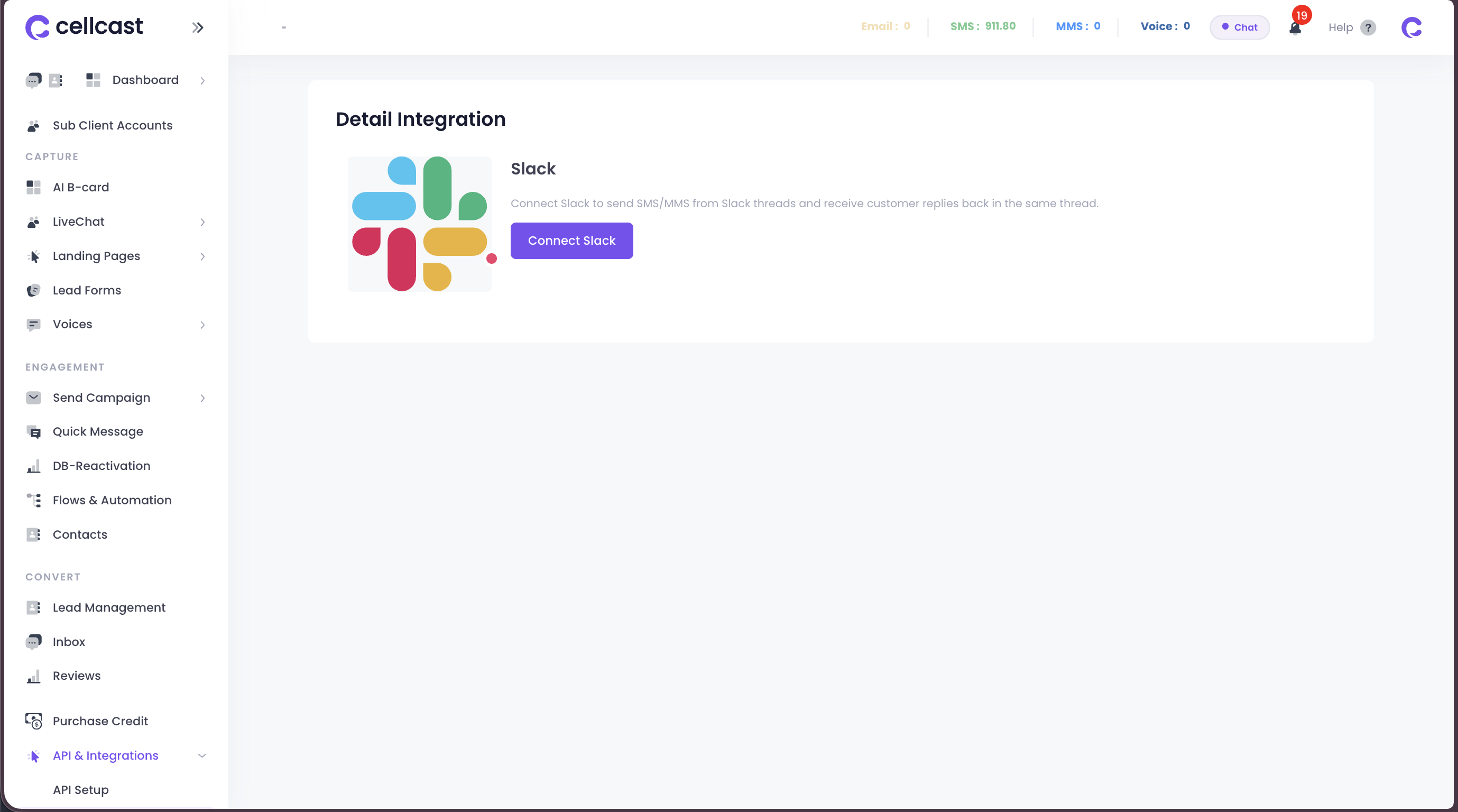
Grant Permissions
Review and grant the required permissions for the Slack integration to access your workspace.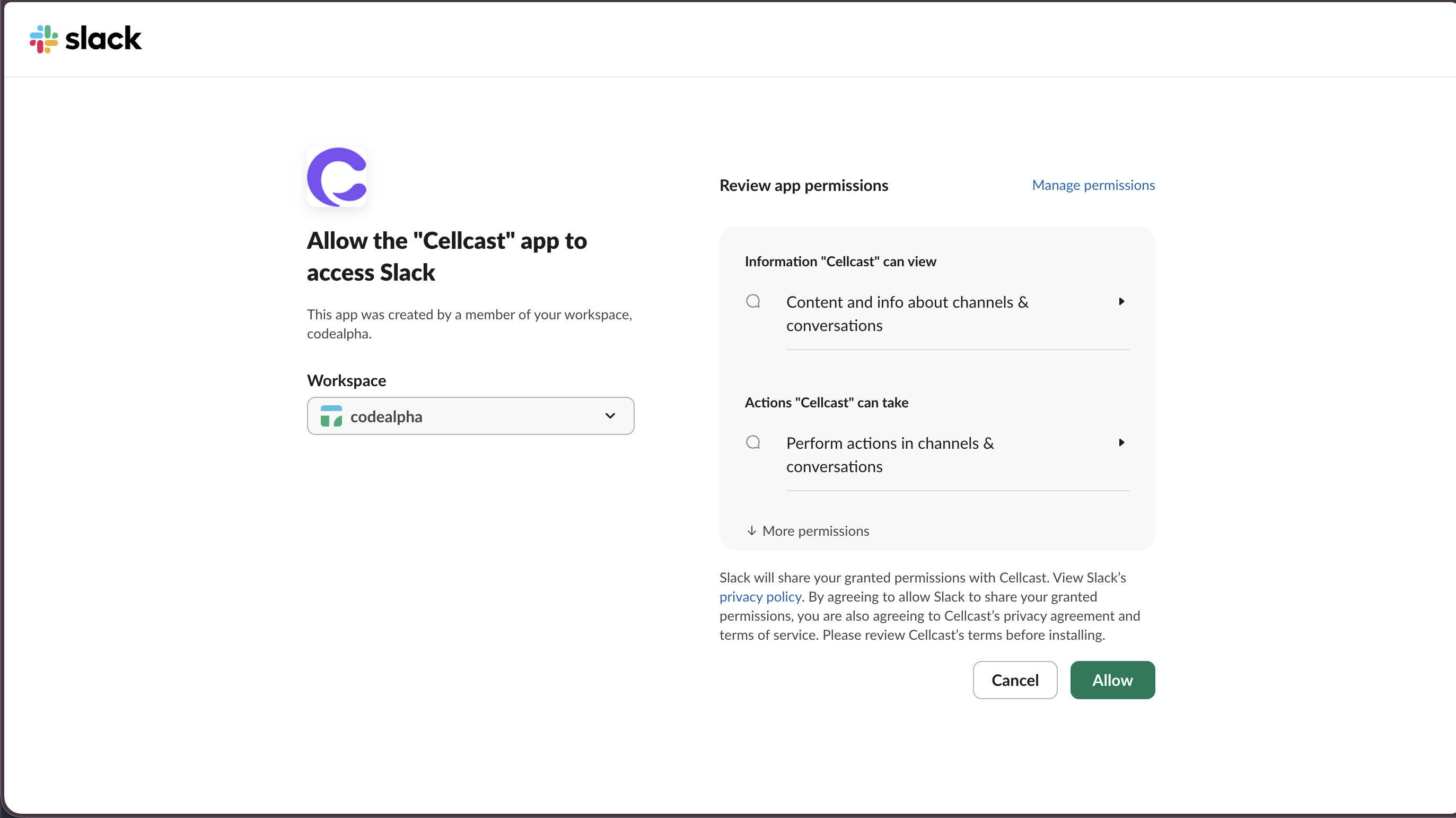
Integration Connected
Once authorized, your Slack workspace will be successfully connected to Cellcast.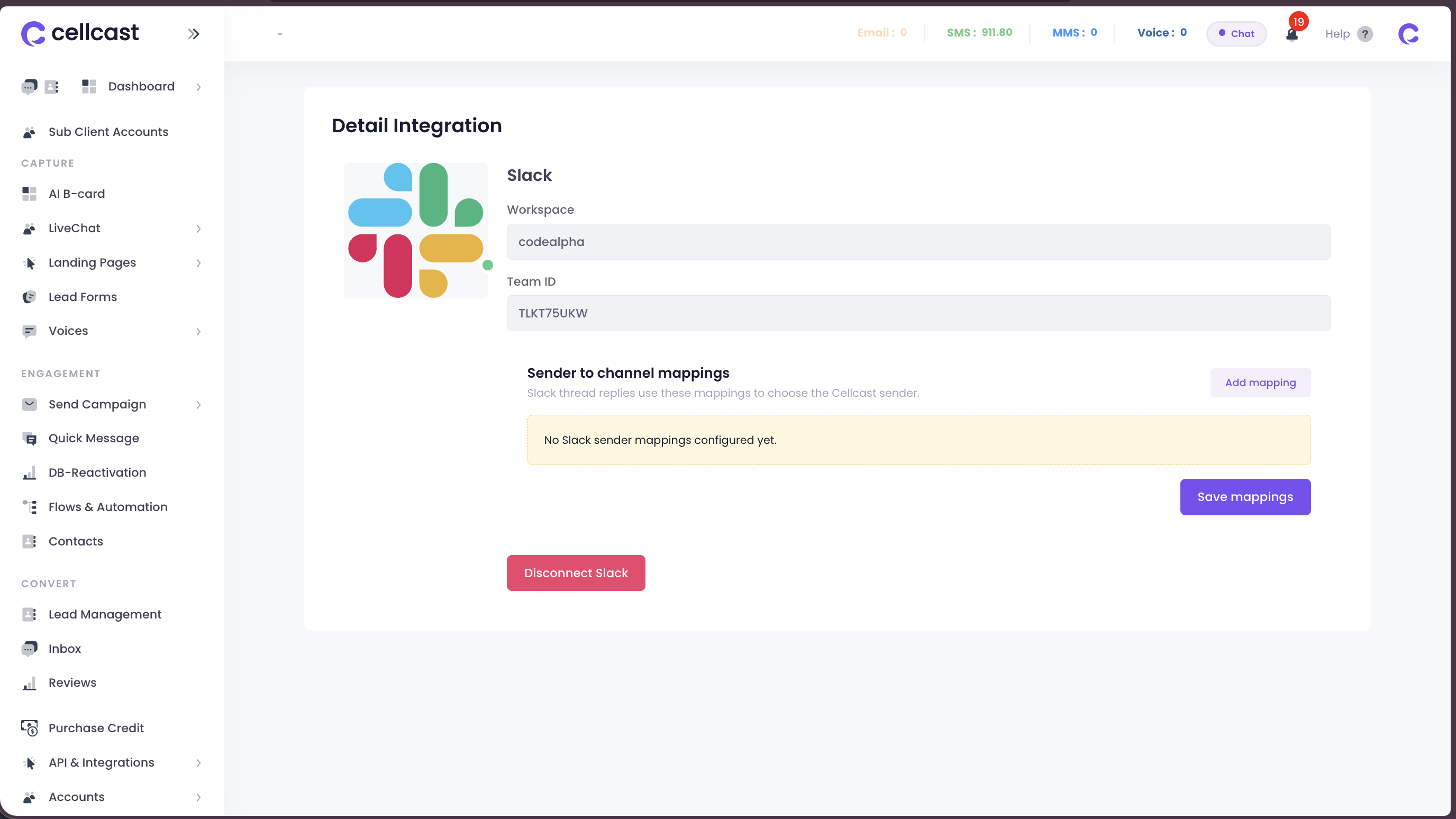
Configure Sender and Channel Mapping
Map your sender IDs to Slack channels to enable sending and receiving messages through your connected workspace.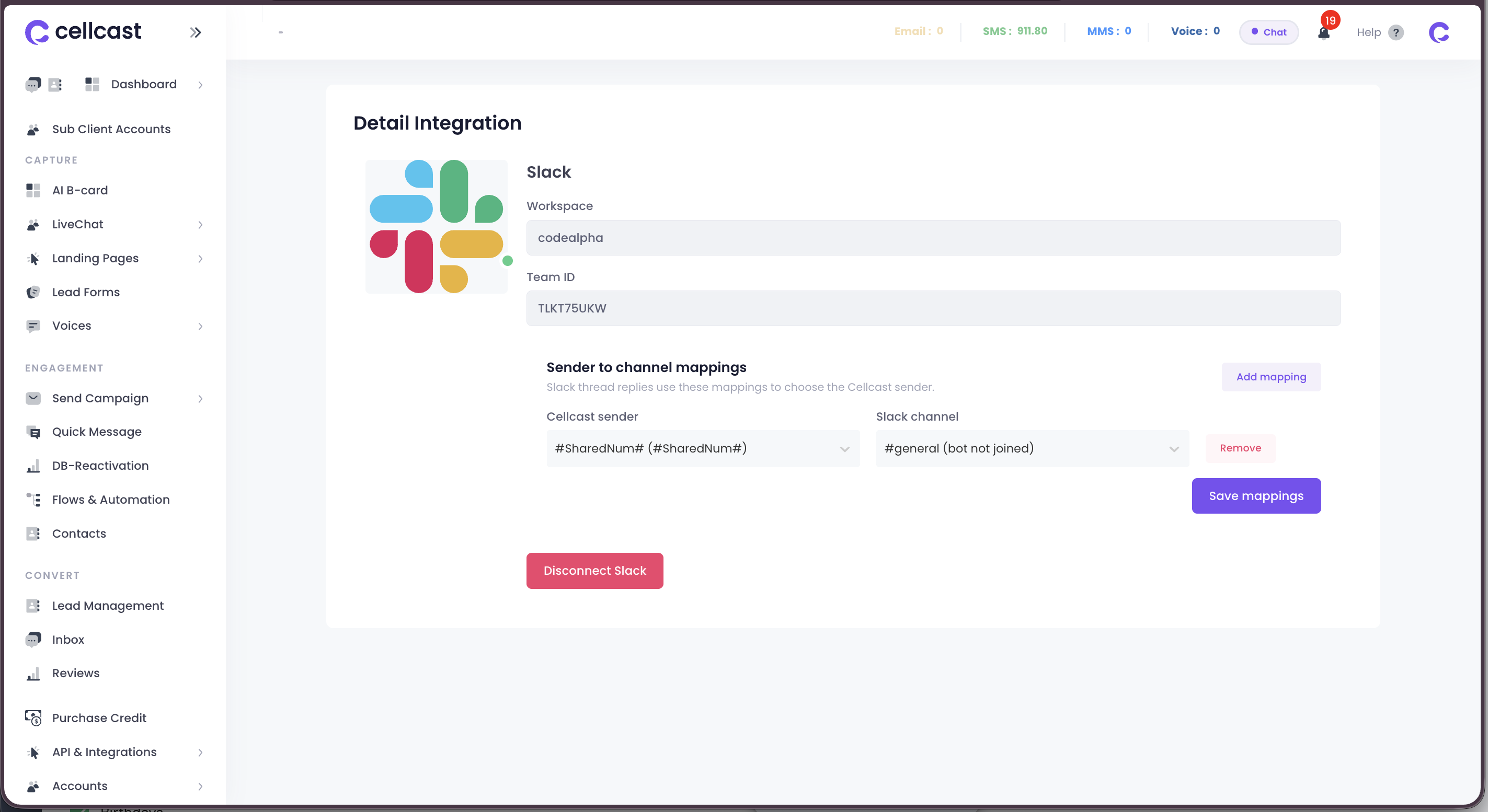
How the mapping decides which channel is used
Each mapping binds one Cellcast sender to one Slack channel, and it works in both directions:
- Incoming SMS sent to that Cellcast number are posted into the mapped channel.
- Replies you type in that Slack thread are sent back out from that same Cellcast sender.
So the channel that gets notified is the one mapped to the number your contact texted. If a number has no mapping, messages to it will not appear in Slack.
A few things worth knowing when you pick a channel:
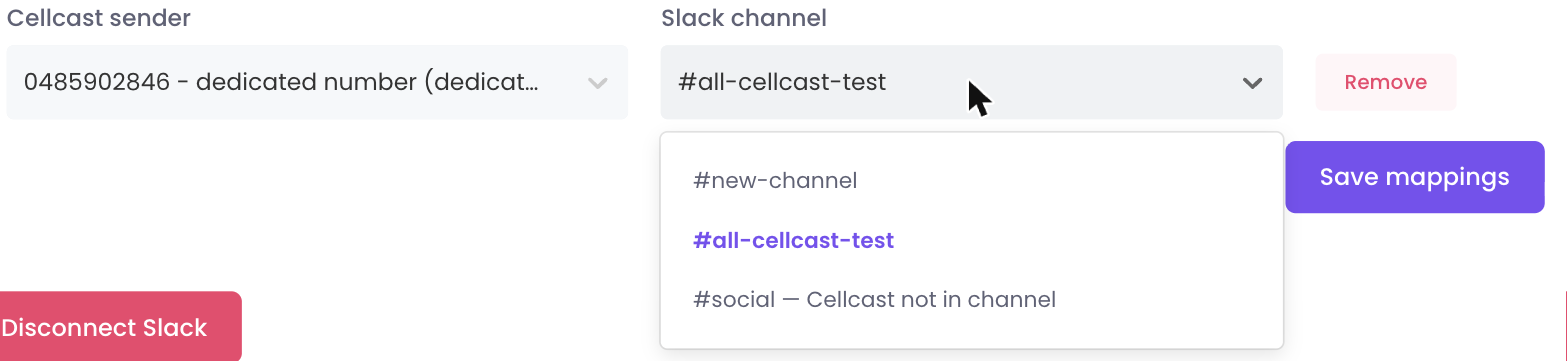
- Only public channels can be selected. Private channels do not appear in the list. If the channel you are looking for is missing, check whether it is private.
- A channel Cellcast has not joined is marked, not hidden. You can still select it — when you save the mapping, Cellcast joins the channel automatically.
- Cellcast must be in the channel to receive your replies. It can post into a public channel without joining, but Slack only delivers your thread replies to Cellcast once it has joined. If replies are not going out, type
/invite @Cellcastin the channel. - Renaming a channel in Slack is safe. The mapping stores the channel, not its name.
Sending SMS via Slack Commands
Use Slack Command to Send SMS
In your Slack workspace, use the slash command to compose and send an SMS message directly from Slack.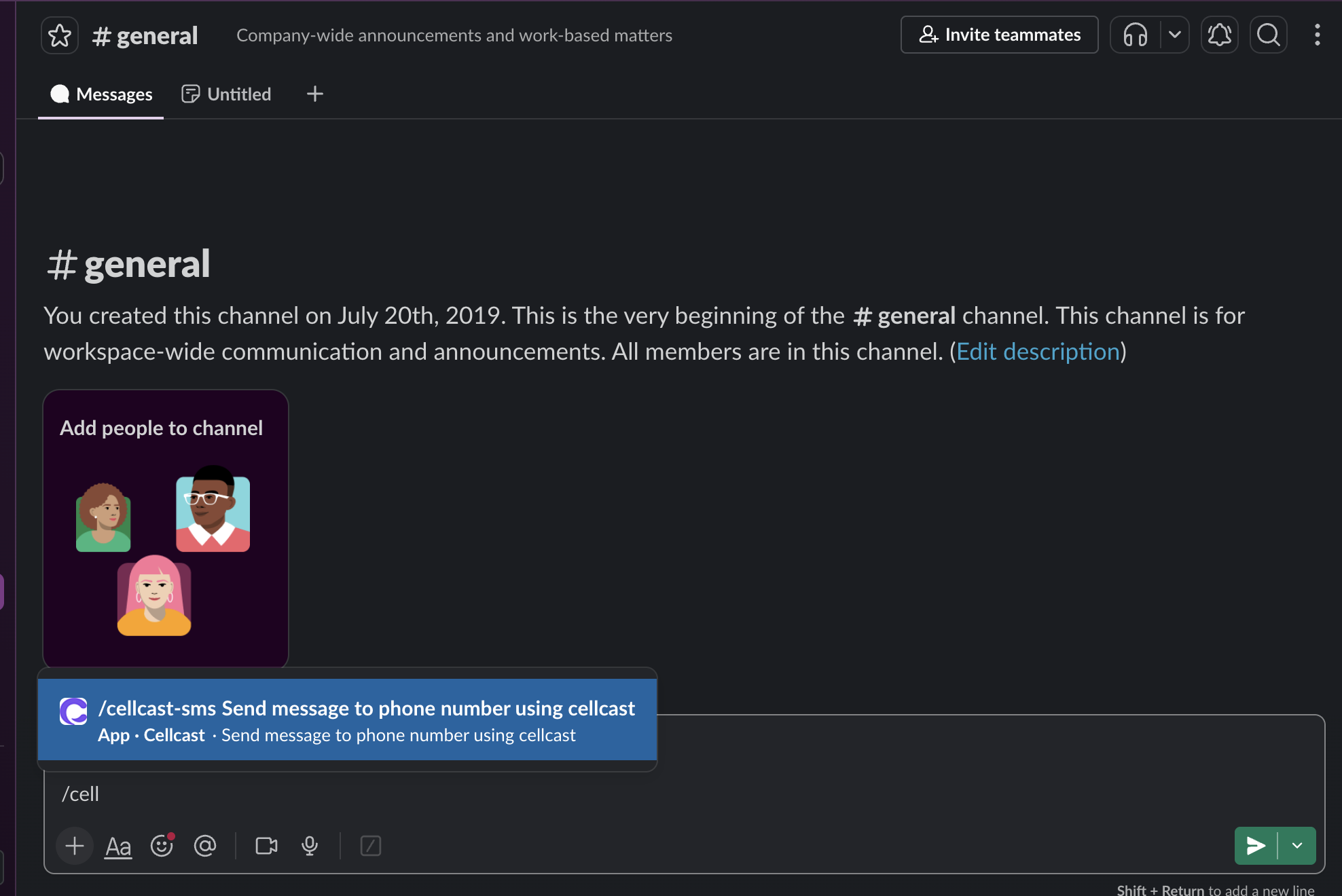
Complete SMS Sending
Enter the recipient number and message content to send your SMS from Slack.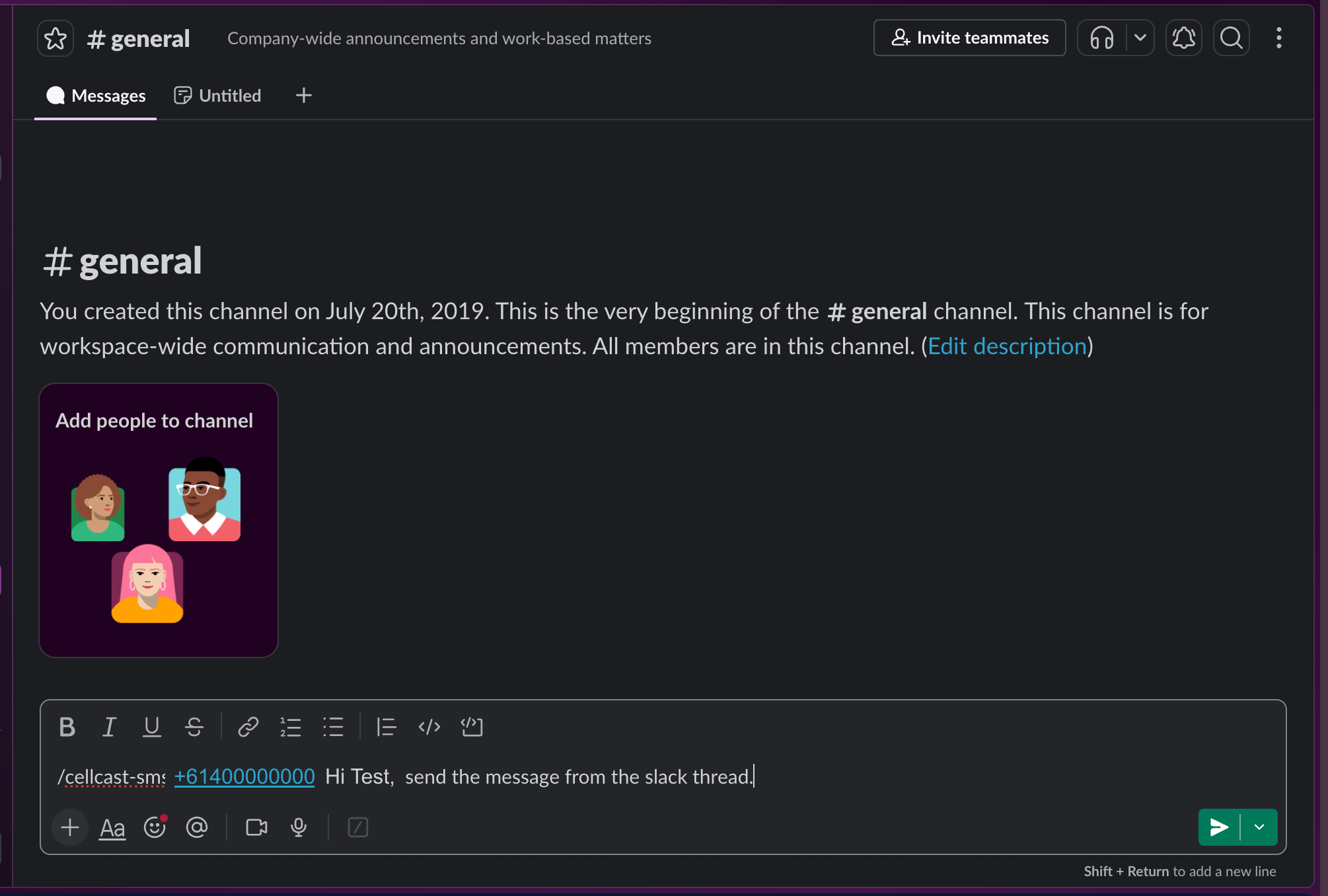
View SMS Sending Status
After sending, you will receive a confirmation with the message delivery status in Slack.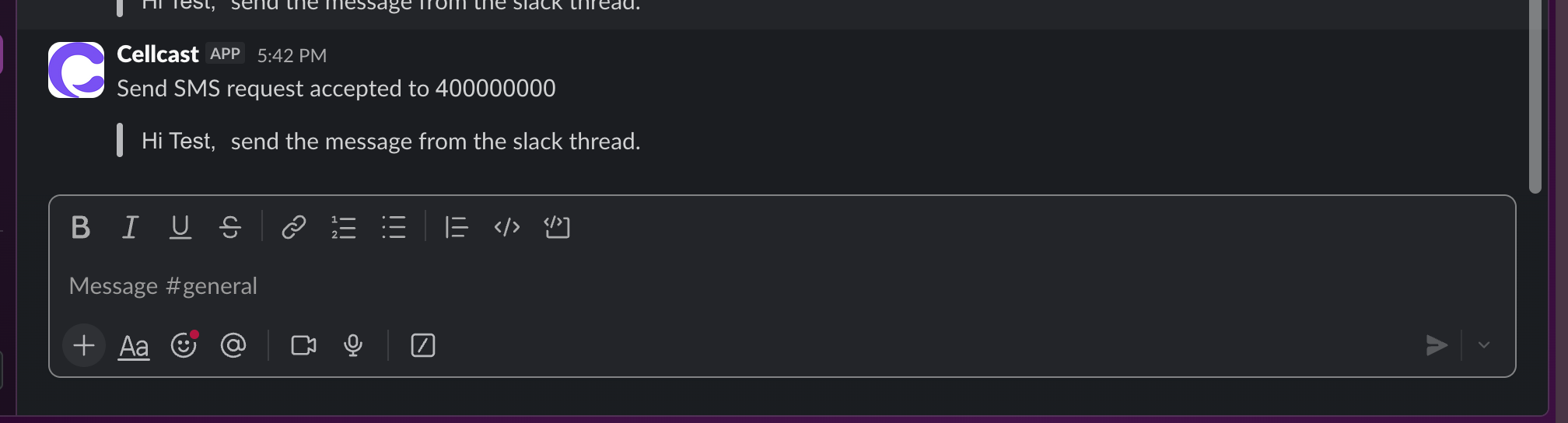
Viewing Activity and Managing Incoming Messages
View Activity Log on Cellcast Platform
All messages sent and received via Slack can be viewed in the activity log on your Cellcast Dashboard.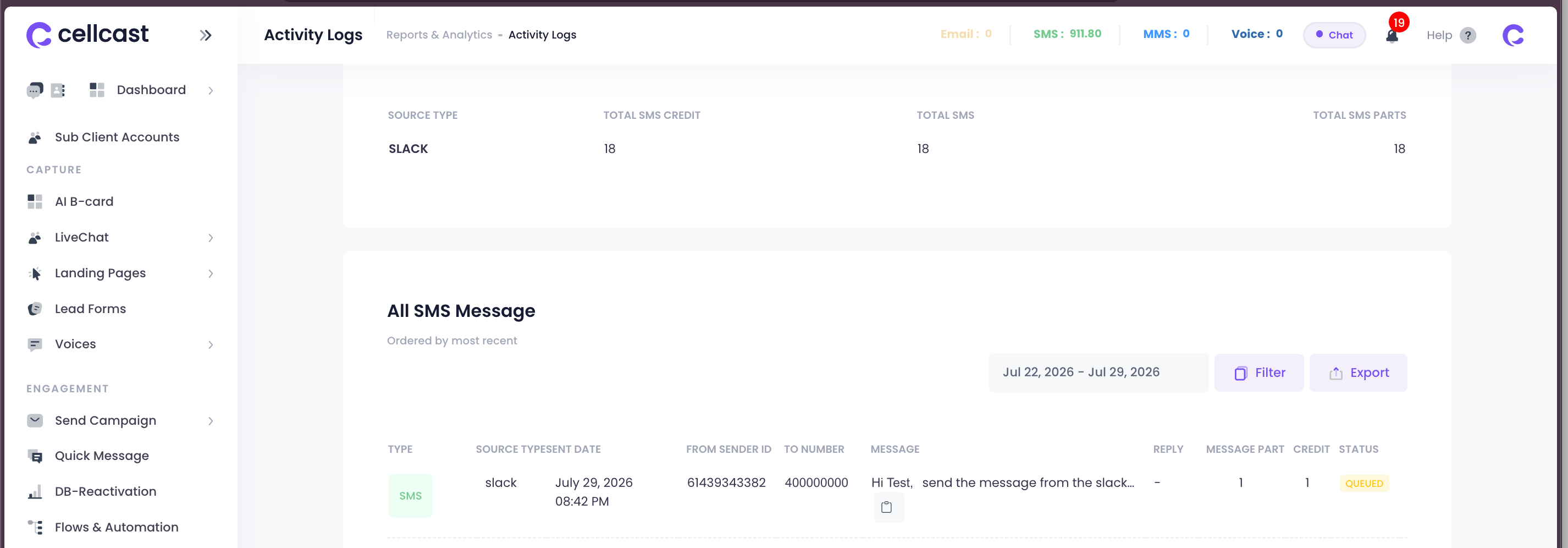
Receive Incoming Messages
When someone texts one of your mapped Cellcast numbers, the message appears in the Slack channel mapped to that number, showing the sender's number and the message content.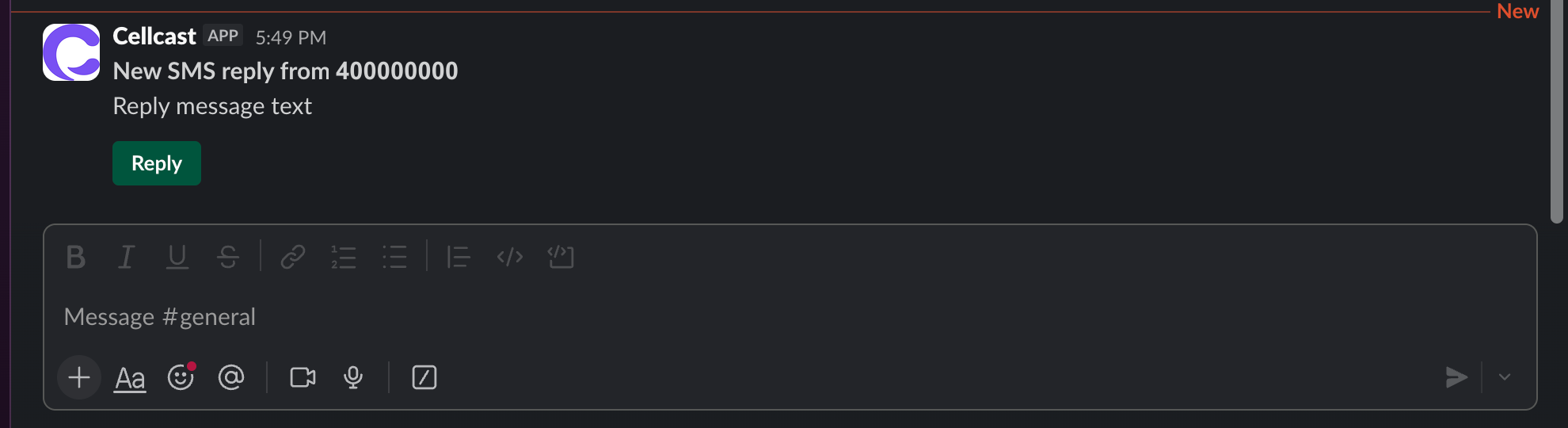
Reply to Incoming Messages
Reply in that thread and Cellcast sends it back to the same contact as an SMS. You do not need to type the number or anything else — the thread already knows who it belongs to. Further messages from that contact continue in the same thread.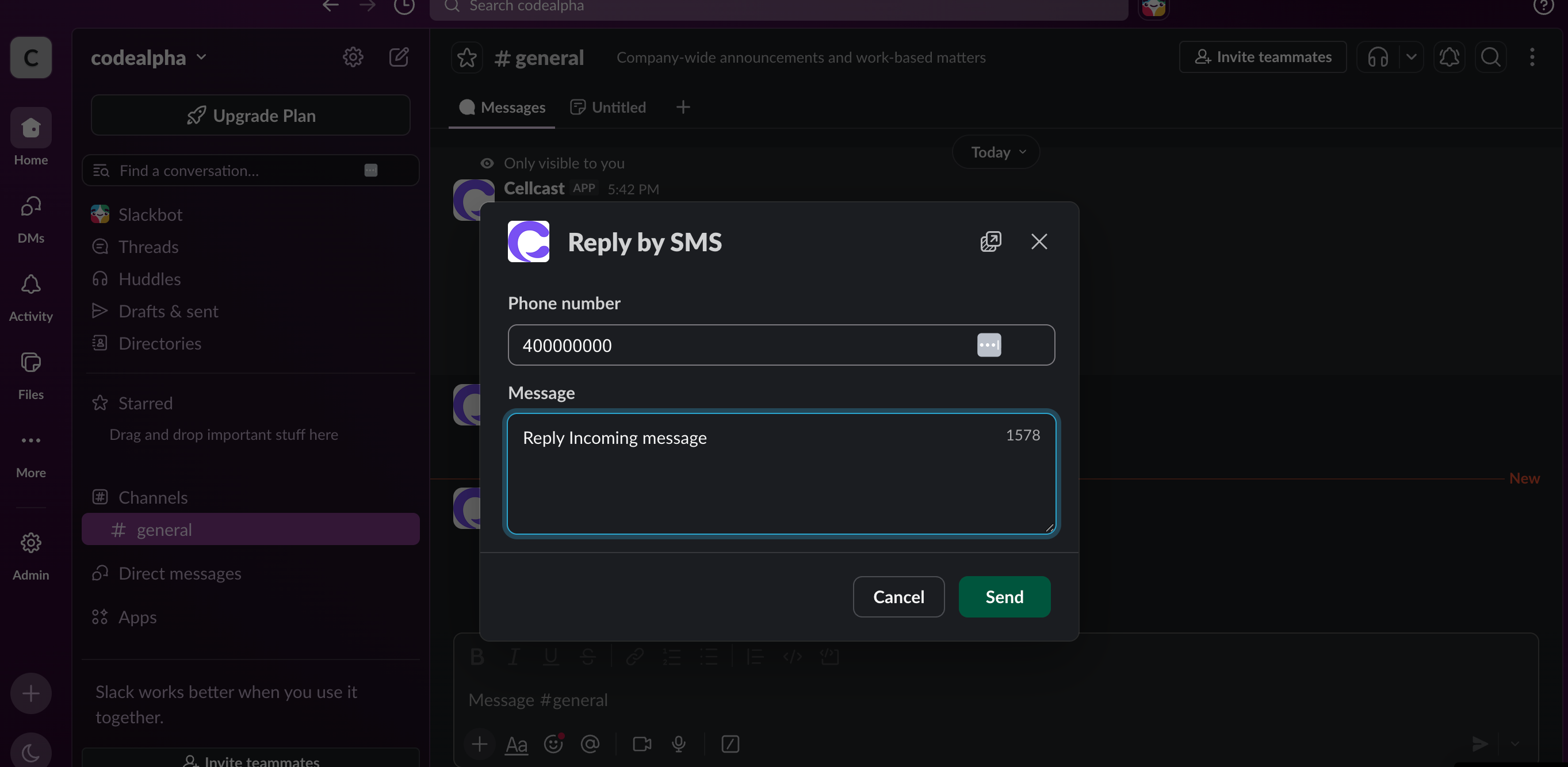
View Reply Status
After replying, you will see the delivery status of your reply message in Slack.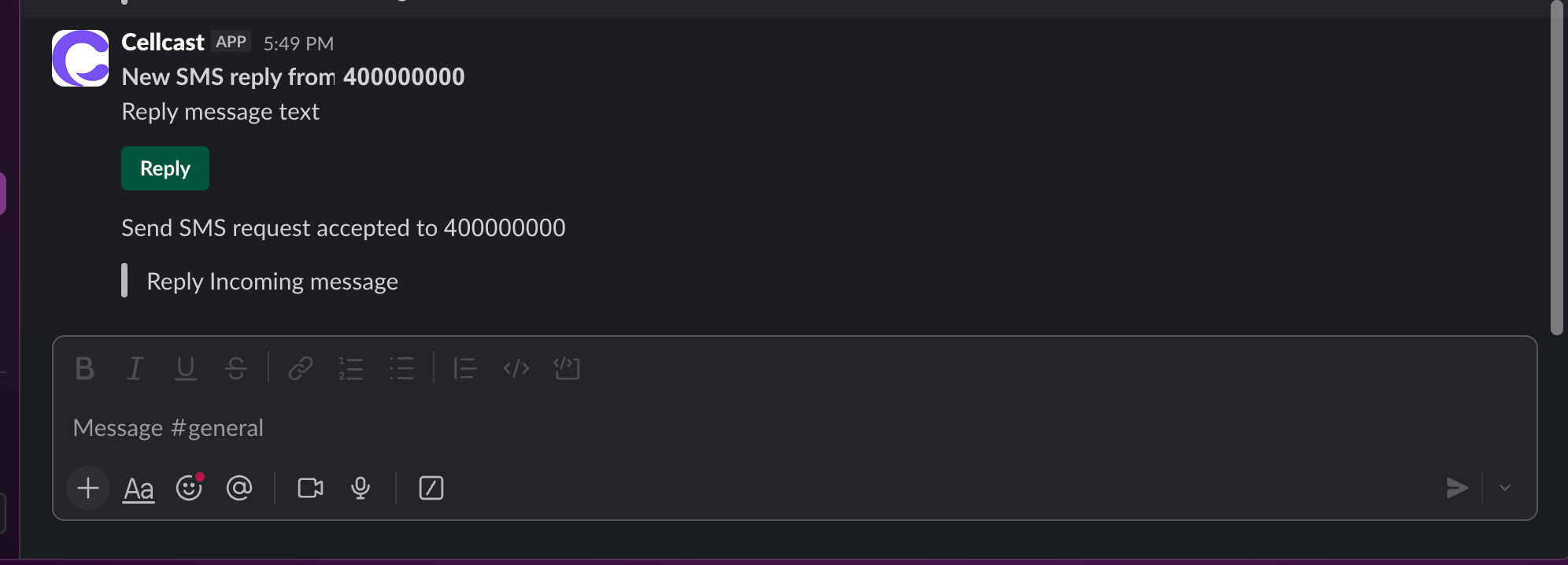
Good to know
- "App is not approved by Slack" on the permission screen is expected. Slack shows this for any app that is not published on the Slack Marketplace. It does not affect the integration, and you can continue.
- One Slack workspace per Cellcast account. Connecting a different workspace replaces the current connection.
- If channels stop appearing, or Slack asks you to reconnect, use the reconnect prompt on the integration page. Slack access tokens are refreshed automatically, so this is rare.
- Disconnecting removes the mappings and the workspace connection. If Cellcast remains listed in your Slack workspace afterwards, a Slack admin can remove it under Slack → Manage apps → Cellcast → Remove.